
You Fibre booster
Discussion


Hi, you fibre want £5 a month to loan me a booster for my wifi signal.
I think that s a bit excessive for a few reasons.
Is there an aftermarket booster I can buy that is compatible with the you fibre modem?
The modem is a sagemcom covered in you fibre branding
Model is a CS39000
The IT guy in work said to replace the you fibre router with my own superior router,
Is this the best option?
He said a better router will be a better option than a booster.
Do you just plug in a new router and the wires and away you go or do you fibre only allow use of their own router?
I think that s a bit excessive for a few reasons.
Is there an aftermarket booster I can buy that is compatible with the you fibre modem?
The modem is a sagemcom covered in you fibre branding
Model is a CS39000
The IT guy in work said to replace the you fibre router with my own superior router,
Is this the best option?
He said a better router will be a better option than a booster.
Do you just plug in a new router and the wires and away you go or do you fibre only allow use of their own router?
Edited by ACCYSTAN on Friday 24th July 14:23
If you have a separate ONT, which you should, it is pretty easy to switch to your own router. The ONT will have registered the MAC address of the current router, but this is fairly easy to deal with.
1 - You go into the current routers admin page, find out the MAC address of the WAN port, and have your new device spoof the MAC address. This is the quickest way to swap them over.
2 - Power off the ONT, remove the current router, plug in the new router. Wait at least 30 minutes to an hour. The lease on the MAC address should expire, so you can then power on the ONT and it should just work. If it doesn't, you can try (LOL) to talk to Youfibre support and have them clear it from their side, but good luck with getting through. This is really the simplest, if potentially time consuming, method - ie less technical.
Youfibre do not restrict what router you use, but be prepared that if you have issues, for troubleshooting, they may require you plug in their supplied device.
Your IT coworker is largely correct, a 'good' router with good signal coverage will be better than a booster. Placing it in a central and open area will also help. But, the decent ones can be pricey, so be aware.
1 - You go into the current routers admin page, find out the MAC address of the WAN port, and have your new device spoof the MAC address. This is the quickest way to swap them over.
2 - Power off the ONT, remove the current router, plug in the new router. Wait at least 30 minutes to an hour. The lease on the MAC address should expire, so you can then power on the ONT and it should just work. If it doesn't, you can try (LOL) to talk to Youfibre support and have them clear it from their side, but good luck with getting through. This is really the simplest, if potentially time consuming, method - ie less technical.
Youfibre do not restrict what router you use, but be prepared that if you have issues, for troubleshooting, they may require you plug in their supplied device.
Your IT coworker is largely correct, a 'good' router with good signal coverage will be better than a booster. Placing it in a central and open area will also help. But, the decent ones can be pricey, so be aware.
The best and easiest option is usually to try a mesh system.
Often 2-3 units, disable the wifi on your existing router, plug the base router into a LAN port then position the other routers around the house. What you will need will depend on what problem you are trying to solve. IF its a coverage/signal strength issue then this is usually the correct answer.
Have a look at the weapons grade wifi thread for more details.
Often 2-3 units, disable the wifi on your existing router, plug the base router into a LAN port then position the other routers around the house. What you will need will depend on what problem you are trying to solve. IF its a coverage/signal strength issue then this is usually the correct answer.
Have a look at the weapons grade wifi thread for more details.
ACCYSTAN said:
He has advised me to buy a GLi Flint 3 router
Is this a good choice?
Is it better than the you fibre supplied router?
Is it easy to set up?
Thank you for replying
The Flint 2 generally gets better reviews, and apparently, gets better speeds. The Flint 3 while having more 2.5G ports has a CPU downgrade which has impacted Wifi performance. The only reason to get a Flint 3 is Wifi 7.Is this a good choice?
Is it better than the you fibre supplied router?
Is it easy to set up?
Thank you for replying
A Mesh can be better, as Bullett has indicated, and it can also usually act as the router as well, and some are good, but again, expensive. Some do come with a reduced feature set though, but I suspect that won't be a problem in this case (and by feature set, I mean what you can configure, customisation etc). An eero pro set up from Amazon will be quite user friendly for you (and Youfibre used to supply these as well)
Cheap way to do get better WiFi coverage if you're tech savvy (or, like me, actually a bit dim but willing to mess about for an hour and break stuff, before getting there via trial and error and YouTube videos) is to use an old router as an additional access point.
Set it up from a laptop via a LAN cable. Go into its settings and turn off DHCP, set its IP address to something outside the range that your actual router can assign, set the WiFi SSID and password to match your existing router, make sure it's set to automatically select the WiFi channel so that it doesn't clash with your existing WiFi, and plug it into your router with a LAN cable. Or use a pair of powerline adaptors if you want to locate it in another room.
Done this successfully with an old BT Home Hub, via powerlines to get WiFi in the garage, and also with an old Asus "gaming " router (big daft looking thing with four antennas, looks like a prop from a crap sci-fi film), which gives much better coverage inside the house than just relying on the EE freebie router. All set to the same SSID and password so any connected devices will automatically choose the one with the strongest signal.
Set it up from a laptop via a LAN cable. Go into its settings and turn off DHCP, set its IP address to something outside the range that your actual router can assign, set the WiFi SSID and password to match your existing router, make sure it's set to automatically select the WiFi channel so that it doesn't clash with your existing WiFi, and plug it into your router with a LAN cable. Or use a pair of powerline adaptors if you want to locate it in another room.
Done this successfully with an old BT Home Hub, via powerlines to get WiFi in the garage, and also with an old Asus "gaming " router (big daft looking thing with four antennas, looks like a prop from a crap sci-fi film), which gives much better coverage inside the house than just relying on the EE freebie router. All set to the same SSID and password so any connected devices will automatically choose the one with the strongest signal.
I m with Youfibre and used my old ADSL router instead of the one they supplied, just needed to reconfigure it as an Ethernet router. No need to change MAC address or fiddle around with passwords.
I connected my old router to the fibre modem with an Ethernet cable.
I connected my old router to the fibre modem with an Ethernet cable.
Edited by frisbee on Saturday 25th July 12:21
Have a look at a Mesh wi-fi setup, I use a Deco AC1200 kit - https://www.amazon.co.uk/TP-Link-Deco-S4-3-pack-Be...
You plug one of the little hubs into your router via a cable, that hub then talks to the other nodes and it creates a really consistent, quality wi-fi connection around your house.
I would say that from the hub to the furthest node is about 25-30ft in a straight line through two walls (office to living room across the hallway) and where I get 200-250mb at the hub, I still get 150mb at the furthest one. So it does use some bandwidth but we have no issue streaming in the living room.
Also set up is nice and easy using the app, you can even set up a guest wi-fi connection etc. Also means if you change broadband provider, you connect the hub to whatever router they provide and so far as your devices are concerned, the wi-fi doesn't change.
You plug one of the little hubs into your router via a cable, that hub then talks to the other nodes and it creates a really consistent, quality wi-fi connection around your house.
I would say that from the hub to the furthest node is about 25-30ft in a straight line through two walls (office to living room across the hallway) and where I get 200-250mb at the hub, I still get 150mb at the furthest one. So it does use some bandwidth but we have no issue streaming in the living room.
Also set up is nice and easy using the app, you can even set up a guest wi-fi connection etc. Also means if you change broadband provider, you connect the hub to whatever router they provide and so far as your devices are concerned, the wi-fi doesn't change.
Struggling to connect to our Mesh....
I had Connect Fibre installed recently and the installer kindly left one of their TP-Link Mesh devices for us to boost signal to our upstairs office, which he synced with the downstairs router.
We"ve put it in the hallway half way between the living room router and upstairs office but looking at the SSID name on the sticker on the back of the Mesh I can t find it when searching for a WiFi connection on my laptop, which defaults to the main downstairs router.
I m sure he said we need to connect to it, and use the password on the sticker?
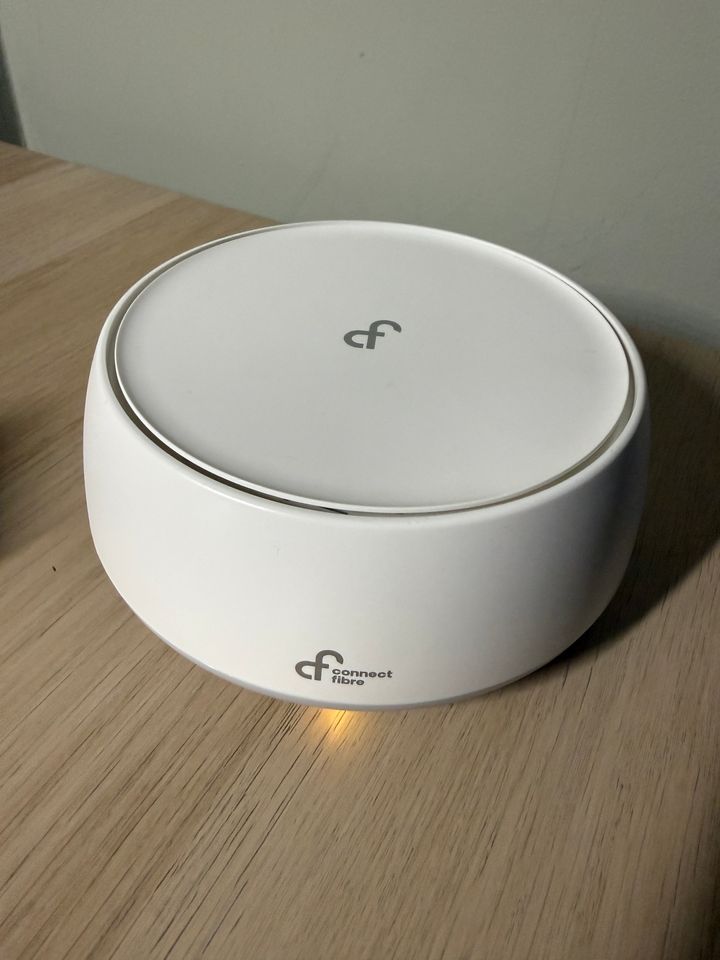
I had Connect Fibre installed recently and the installer kindly left one of their TP-Link Mesh devices for us to boost signal to our upstairs office, which he synced with the downstairs router.
We"ve put it in the hallway half way between the living room router and upstairs office but looking at the SSID name on the sticker on the back of the Mesh I can t find it when searching for a WiFi connection on my laptop, which defaults to the main downstairs router.
I m sure he said we need to connect to it, and use the password on the sticker?
Edited by The Gauge on Tuesday 28th July 21:24
The Gauge said:
Struggling to connect to our Mesh....
I had Connect Fibre installed recently and the installer kindly left one of their TP-Link Mesh devices for us to boost signal to our upstairs office, which he synced with the downstairs router.
We"ve put it in the hallway half way between the living room router and upstairs office but looking at the SSID name on the sticker on the back of the Mesh I can t find it when searching for a WiFi connection on my laptop, which defaults to the main downstairs router.
I m sure he said we need to connect to it, and use the password on the sticker?
Depends how it's set up, but new node should just extend the existing WiFi network, you use the same ssid and password, but it should be connecting to the nearest node, though you won't see any indicator of this on your laptop.I had Connect Fibre installed recently and the installer kindly left one of their TP-Link Mesh devices for us to boost signal to our upstairs office, which he synced with the downstairs router.
We"ve put it in the hallway half way between the living room router and upstairs office but looking at the SSID name on the sticker on the back of the Mesh I can t find it when searching for a WiFi connection on my laptop, which defaults to the main downstairs router.
I m sure he said we need to connect to it, and use the password on the sticker?
Edited by The Gauge on Tuesday 28th July 21:24
If you get a WiFi scanner app, like wifiman, that should show two devices on the same ssid
Thanks, I’d incorrectly assumed I’d see the node as a device to connect to.
It’s connecting to the same SSID as the router downstairs so it is perhaps working. I might do a speed test, then unplug the node and do another test to see if there’s any difference. Hopefully that should reveal if it’s providing any benefit
It’s connecting to the same SSID as the router downstairs so it is perhaps working. I might do a speed test, then unplug the node and do another test to see if there’s any difference. Hopefully that should reveal if it’s providing any benefit
Gassing Station | Computers, Gadgets & Stuff | Top of Page | What's New | My Stuff